
Why Most Bad Results Are Fixable
Almost everyone who tries a floor plan to 3d tool has the same moment. The preview loads, and something is off. A room looks too small, a wall is missing, or the whole thing has a strange style you never asked for. The instinct is to blame the tool and give up. In practice, most of these problems trace back to a handful of causes, and nearly all of them can be fixed in a couple of minutes. This guide works through the most common symptoms, what usually causes them, and what to do next.
Symptom One: A Wall or Doorway Is Missing
Likely cause: The AI could not clearly see that part of your plan. Thin, faint, or low-contrast lines are the usual culprits, especially in old scans or photographs of printed blueprints taken in dim light.
The fix: Go back to the source image. Rescan or rephotograph the plan in bright, even light, holding the camera directly above the page so lines stay straight. If you are working from a digital file, use the highest quality version you have instead of a compressed screenshot. Most tools accept PNG, JPG, and WEBP files up to roughly 20MB, so there is room for a high resolution upload. Many will also convert a PDF into an image automatically, which is often cleaner than a photo of a printout.
Symptom Two: Extra Walls Appeared That Are Not on the Plan
Likely cause: Clutter. Handwritten notes, dimension lines, furniture symbols, hatching, and watermarks can all look like structure to an AI that is reading the image for walls.
The fix: Clean the plan before uploading. If you can, use a version with annotations removed, or crop out title blocks and legends around the edges. A simpler drawing gives the AI less to misinterpret. This single step solves more problems than any other.
Symptom Three: Rooms Look Out of Proportion
Likely cause: Either the original plan was not drawn to scale, or the image was distorted when captured. A photo taken at an angle makes one side of the page look larger than the other, and that distortion carries straight into the 3D result.
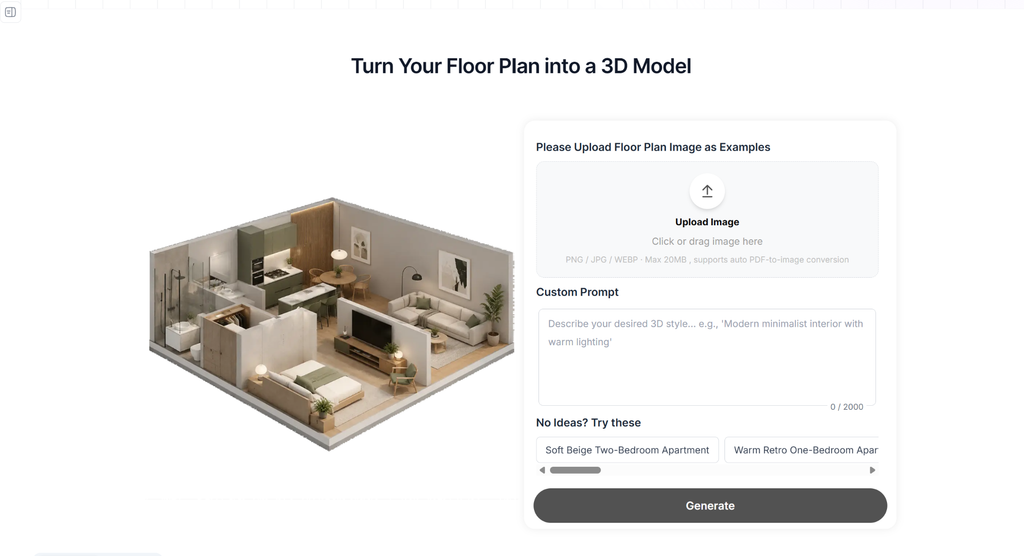
The fix: Photograph the plan from directly above, or use a flat scan. Then check the isometric preview against your real layout. Compare the bedroom to the kitchen, the hallway to the living room. If proportions are clearly wrong in the preview, fix the source image rather than pushing ahead. Remember that a floor plan to 3d model conversion reflects what you give it. It does not correct errors in the original.
Symptom Four: The Style Is Not What You Wanted
Likely cause: A vague or missing prompt. Without direction, the tool falls back on a generic look, and generic rarely matches what you pictured.
The fix: Guide the style on purpose. Tools in this category typically offer three ways to do it: write a prompt, upload a reference image, or choose a ready-made preset. If you write a prompt, name concrete features. Compare “make it modern” with “warm modern two-bedroom apartment, light wood floors, soft beige walls.” The second gives the AI materials, colors, and a mood to aim for. If you struggle to put the look into words, a reference image of a room you like can say it better than a paragraph.
Symptom Five: The Preview Looks Great but the Final Model Disappoints
Likely cause: Skipping the review. The preview is where you catch problems cheaply. If you generate the final model without studying it, you may discover issues only after the full conversion.
The fix: Treat the isometric preview as a checkpoint, not a formality. Before generating the final file, check each of these:
- Are the room sizes in believable proportion to each other?
- Are doors and openings in the right places?
- Do rooms connect the way they do in real life?
- Does the overall style match what you asked for?
If anything fails the check, revise your prompt or source image and regenerate the preview. Only move on when it looks right.
Symptom Six: The Model File Will Not Open Where You Expected
Likely cause: A mismatch between the file format and the software. A proper floor plan to 3d model output usually arrives as a GLB file, a standard format that bundles geometry, textures, and coordinates. Not every program opens GLB files by default.
The fix: Use software known to support it. Blender, Unity, Unreal Engine, and SketchUp can all work with GLB files, and many free online viewers will open one too so you can rotate it and inspect it from any angle. If your program does not support GLB, check whether it offers an import plugin or whether a free converter can change the format.
Symptom Seven: It Looks Beautiful but Something Feels Untrustworthy
Likely cause: This one is not a bug. It is a healthy instinct. A polished, rotating model can feel more authoritative than it really is.
The fix: Remember what the result is. A model generated from a floor plan is meant for visualization, space planning, and presentations. It does not verify which walls are load bearing, confirm exact measurements, or check anything against building codes. If you plan to renovate or build, you still need professional architectural drawings and verified dimensions. The model helps you see and discuss ideas. It does not replace the people and documents that make construction safe.
A Quick Pre-Flight Checklist
Run through this before every upload and you will avoid most of the problems above:
- Use the sharpest, flattest, best lit version of the plan you have
- Remove notes, watermarks, and unnecessary markings if possible
- Confirm the file is a supported format and under the size limit
- Decide on your style approach before you generate: prompt, reference image, or preset
- Study the isometric preview before committing to the final model
- Open the finished GLB and rotate it to check angles the preview did not show
Why Free Tools Are Good for Experimenting
One reassuring detail: troubleshooting costs very little when you use a floor plan to 3d model free option. Many tools offer free usage, and some do not even require an account for basic conversions. That means you can try a cleaner upload, a sharper prompt, or a different style without worrying about burning through a budget. Treat your first attempt as a draft. People who get great results usually did not get them on the first try. They got them by adjusting one thing at a time and noticing what changed.
The Short Version
Most disappointing 3D results come from one of four places: a hard-to-read source image, a cluttered plan, a vague style prompt, or a skipped preview. Fix those, and a floor plan to 3d conversion becomes a fast, reliable way to see your layout in three dimensions. Keep in mind that the finished model is a visualization tool, not a construction document, and you will get exactly what these tools do best: a clear, rotatable view of a space you can explore, present, and build ideas on.