Visual content rarely stays on one device from start to finish. A photographer may capture and make a quick edit on a phone, review the image again on a larger screen, send a preview to a client, and store the approved file in the cloud. For creators in Hong Kong and Taiwan, that workflow often crosses languages as well as devices: an English-language editing tool may sit beside Traditional Chinese client messages and a Windows-based file system.
The friction usually appears after the creative work is done. Files get duplicated, previews are mistaken for final exports, message attachments pile up in local storage, and nobody remembers which version the client approved. A good cross-device workflow is less about adding more apps and more about giving each device and service a clear job.
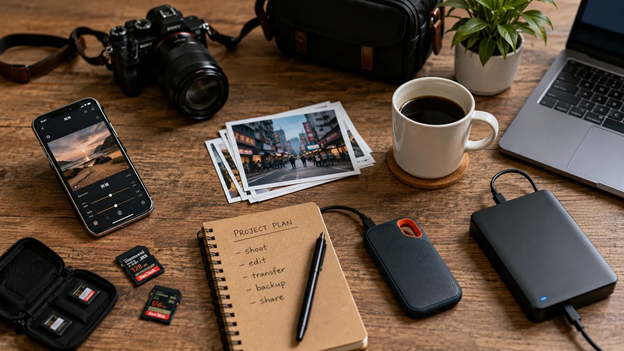
A creator workflow is easier to manage when capture, transfer, backup and sharing are treated as separate steps.
Mobile Editing Is Fast, but It Is Only the First Half
Phones are excellent at the early stages of visual work. Camera and filter apps make it possible to shoot, crop, adjust color, prepare short video clips, and publish without opening a computer. For a creator working on the move, that speed is hard to beat.
The limits become clearer as the project grows. Twenty images from a casual shoot are easy to manage on a phone; several hundred files across multiple clients are not. Once a job includes source files, alternate crops, client previews, high-resolution masters and social exports, the problem changes from editing to organization.
That is where a desktop often becomes useful. The goal is not to replace mobile editing, but to move the parts of the workflow that benefit from a larger screen, a keyboard and a proper file system.
When the Desktop Becomes the Better Workspace
A desktop or laptop is usually better for the unglamorous parts of creative work: renaming files, comparing versions side by side, moving large folders, writing detailed client notes, and keeping several project tools visible at once. Those tasks matter because they are where small organizational mistakes become expensive later.
Messaging also changes on a computer. Creators can drag files directly from folders, keep a client conversation open beside an editing application, and review feedback without repeatedly switching to a phone. Chinese-speaking Windows users who are moving more of that communication to a PC may consult a Telegram 电脑版下载指南 when comparing desktop access with a primarily mobile setup. A third-party guide can be useful for orientation, while the actual software source and installer should still be verified before installation.
For Hong Kong and Taiwan users, desktop work can also reduce language friction. It is common to work with English menus in one application, Traditional Chinese client messages in another, and bilingual filenames or project notes. A predictable desktop setup makes those transitions less distracting.
Build a File Structure That Survives Revisions
The most useful file system is not the most elaborate one; it is the one a creator can understand six months later. Keeping originals, working files, previews and final exports in separate folders prevents the familiar situation where a directory contains final.jpg, final-2.jpg and final-final-v3.jpg with no clue which one was delivered.
A simple project structure might separate Originals, Working Files, Client Previews and Final Exports. Recurring work can also be grouped by year, client and campaign. The exact labels are less important than using the same logic every time.
File names should carry enough context to be searchable. A name such as clientname-campaign-hero-v03.jpg is more useful than IMG_4831-edit.jpg because it still makes sense after the file is copied into another folder or shared with someone else. Version numbers also make revisions clearer than repeatedly adding the word ‘final.’
Use Messaging for Feedback, Not as a Permanent Archive
Messaging apps have become part of everyday creative collaboration. Photographers send previews, designers share concepts, video editors ask for feedback on a rough cut, and social teams coordinate publishing. The speed is valuable, especially when a decision only needs a short exchange.
Problems start when the conversation becomes the only record of the project. A client may approve an image in a chat, but the approved file never gets moved into the final project folder. Weeks later, someone has to scroll through old messages to reconstruct the decision.
A better rule is simple: messaging is for discussion and transfer; the project folder or cloud workspace is the source of truth. Once a file is approved, the master copy should live in a location that is easy to search, back up and hand over to another person.
Media Downloads Deserve Deliberate Settings
Visual creators receive more attachments than most users. A single group conversation can produce screenshots, reference images, short videos, PDFs, compressed archives and temporary exports. If every attachment is saved automatically, a workstation can accumulate gigabytes of material that was never meant to become part of the permanent archive.
This is especially noticeable when high-resolution media is involved. A few large images are harmless, but repeated downloads across several active chats can quietly create duplicates and fill a drive. Users who exchange a lot of visual content may find a Telegram 自动下载设置指南 useful when deciding which types of media should be saved automatically on a desktop computer. The practical goal is not to disable every download, but to make the setting match the way the device is actually used.
A useful monthly habit is to check the default download folder, remove obvious duplicates and temporary previews, and move genuine project assets into their proper location. Automatic behavior should save time, not create a second unmanaged archive.
Share the Right File, Not Always the Largest File
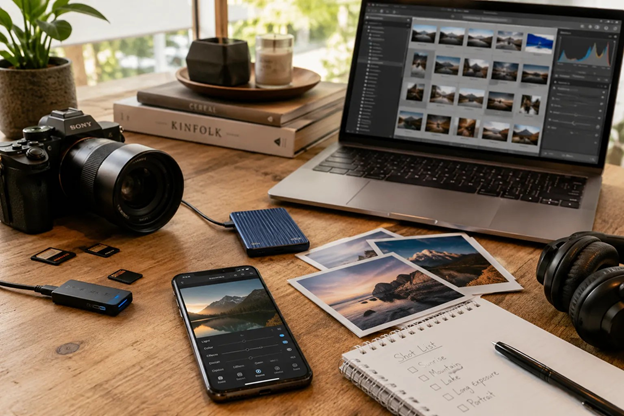
Another source of unnecessary storage is sending full-resolution masters when a smaller preview would do. A client reviewing composition on a phone rarely needs the same file that would be sent to a printer or archived for future retouching.
Creators can save time by preparing files for different jobs: a lightweight preview for approval, a web-optimized version for publishing, and a high-resolution master stored in the project archive. The master does not need to travel through every chat thread simply because it exists.
This distinction also keeps cloud storage and messaging in their proper roles. Messaging is excellent for fast feedback. Cloud storage is better for final assets, larger files and long-term access. A link to a well-organized folder is usually more reliable than treating months of chat history as a file library.
Notifications and Security Are Part of the Creative Workflow
A desktop messaging app can remain open for an entire working day, which makes notifications more disruptive than they may be on a phone. Every reaction, group message and file upload can break concentration during editing. High-volume groups are often better muted and checked at planned intervals, while direct client messages or urgent production channels can remain visible.
Security deserves the same practical treatment. Unreleased campaign visuals, private event photos and internal brand assets may be commercially sensitive even when they do not look like traditional confidential documents. Creators should lock unattended computers, review active sessions, keep applications updated, and remove access from old or shared devices.
The most useful policies are the ones that fit normal work. A complicated rule that nobody follows is weaker than a simple routine that consistently protects files and accounts.
A Cross-Device Workflow That Stays Manageable
The strongest creative setup does not force every task onto one device. Mobile remains ideal for capture, quick edits and time-sensitive publishing. Desktop is better for organization, large-screen review, naming, backups and longer conversations. Messaging supports fast collaboration, while cloud storage preserves the files that need to survive the conversation.
A practical workflow might look like this: capture and make a first edit on mobile; transfer selected material to the desktop; organize originals and working files; send a smaller preview for feedback; record the approved version in the project folder; then archive the final master in cloud storage or another backed-up location.
That sequence is deliberately ordinary. It does not require a complex production system, and it scales much better than relying on memory. The less time a creator spends hunting for downloads, comparing duplicates or asking which file was approved, the more attention remains for the actual creative work.
Final Thoughts
A good mobile-to-desktop workflow is not defined by a particular camera, editing app or messaging platform. It is defined by clear boundaries: where files are created, where they are discussed, where final versions are stored, and which downloads are worth keeping.
For visual creators working across phones, Windows computers and cloud services, those boundaries turn a collection of useful tools into a reliable system. The result is not only cleaner storage, but fewer version mistakes, faster client handoffs and a workflow that remains understandable as the volume of work grows.